
Converting a Score
A score written for other instruments — stock Sibelius percussion, or another library — can be moved onto Accent Tap without retyping any notes. Do this once per score.
First finish the one-time setup in Sibelius: the device has to be active and its Sound Set column must read Accent Tap.
1. Import the instruments
Appearance ▸ House Style ▸ Import, choose AccentTap, and tick:
- Instrument definitions
- Playback dictionary
Nothing in the score changes yet. It now knows the Accent Tap instruments — they end in -AT! in any instrument list.
2. Choose which staves become Accent Tap
Home ▸ Plug-ins ▸ Accent Tap ▸ Assign Accent Tap Instruments (Manual).
The dialog lists every instrument in the score, one row each — a grand staff is one row, not two. Tags after a name tell you what you are looking at:
| Tag | Meaning |
|---|---|
[stock] |
A stock Sibelius instrument — the usual thing to convert |
[2 staves] |
A grand staff; converting the row converts both staves |
[mixer] |
A sound was forced on this staff in the Mixer. That overrides the instrument, so the staff plays through whatever device the override names |
Set the dropdown next to each staff you want to change. Every row starts at (none), which leaves that staff alone, so you can convert a few staves now and the rest later.
If an instrument name appears more than once in the dropdown, the score holds several
definitions of it. Each one says how many staves use it (— 3 staff/staves, or
— unused), and the ones in use are listed first. Pick a definition already in use.
Click OK. On a large score this takes a moment; a progress bar shows where it is.
Scores with more than 64 instruments: the dialog says how many it could not list. Those are left alone — change them with Home ▸ Instruments ▸ Add or Change.
3. Read the summary
OK does three things: it changes the instruments you picked, repairs every Accent Tap staff in the score, and then checks where each one actually plays. The summary reports all three.
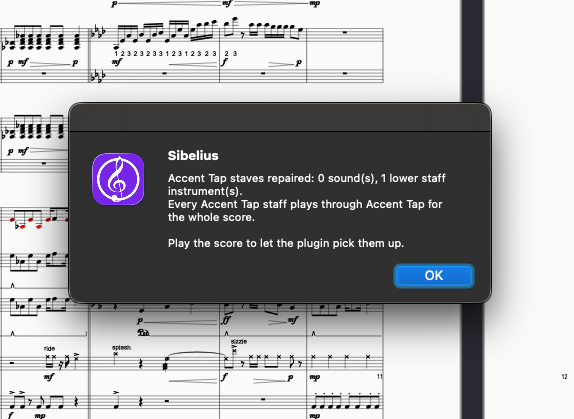
If a staff is named as still playing through another device, set that staff's Device to Accent Tap in the Mixer. The summary gives the staff and the bar where it leaves Accent Tap.
4. Press play
The plugin loads the instruments, groups matching staves into sections, and places everyone on the stage. See Sibelius.
What conversion leaves alone
Your notation. No clef changes, no instrument-change label in bar 1, no "To Marimba" warning above the preceding note — only the instrument and the sound it plays.
Rename the staves afterwards however you like, including numbering a section
(Marimba 1, Marimba 2). Assign recognises instruments by their Sound ID, not their
name, so renamed staves are still found and repaired.
Older Accent Tap plugins
Earlier versions shipped Convert Staves to Accent Tap Instruments and Accent Tap: List Instruments. Both are retired — Assign Accent Tap Instruments replaces them, and Convert left grand-staff lower staves on their old device.
Updating does not delete them. If you still see them in the menu, drag them out of:
~/Library/Application Support/Avid/Sibelius <version>/Plugins/Accent Tap/