
Search & Bulk Edit
The value of a growing library is only as good as your ability to find things in it. This page covers the three ways CueOrganizer narrows down a cue list — free-text search, chip filters, and structured filters — and the bulk-edit workflow for changing many cues at once.
Free-text search
The search box at the top of the sidebar filters the cue table in real time as you type. Search matches across:
- Cue title
- Composer
- Album
- Notes
- Filename (so a filename like
JFJ_1m2_v003is findable even if the cue title is prettier)
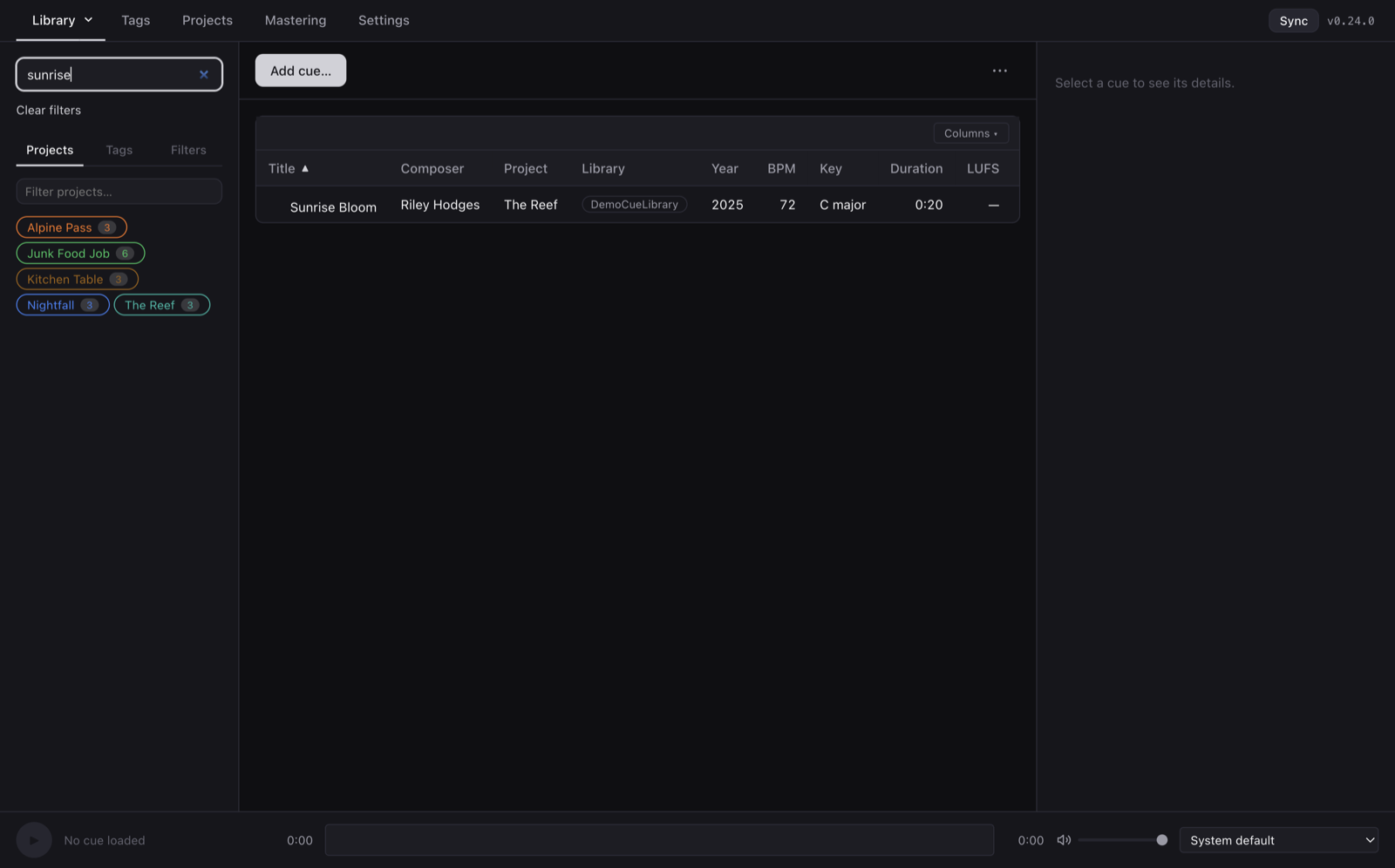
Search is substring-based and case-insensitive. Type "sunrise" and you get every cue whose title, composer, notes, or filename contains the substring anywhere.
Sidebar filters
Below the search box, the sidebar has three tabs of one-click filters:
Projects
Every project shows as a chip with its color and cue count. Click a chip to include only that project's cues; click again to remove. Multiple project chips OR together — click Nightfall + Alpine Pass to see cues from either. A Filter projects… box above the chips filters the chip list itself when you have dozens of projects.
Tags
Same one-click behaviour, but for tags. Click "Ominous" + "Piano" to narrow to piano-driven ominous cues. Tags AND together within a single tag click (a cue must have both to match).
Filters
The structured filter tab has range-based controls for the numeric fields:
- Year range — two-handle range slider from the earliest to latest year in your library.
- BPM range — slider from 40 to 240 BPM by default.
- Rating minimum — star click to require at least N stars.
- Composer — substring match.
- Time signature — substring match (e.g. "5/4" catches anything in that meter).
- Key — multi-select from the keys used in your library.
Every filter chip and slider layers on top of the search box — the cue table shows cues matching all active filters plus any chips inside a given category. The Clear filters link appears whenever anything is active; one click resets everything.
Bulk Edit
Select more than one cue in the cue table and the detail panel on the right turns into the Bulk Edit panel:
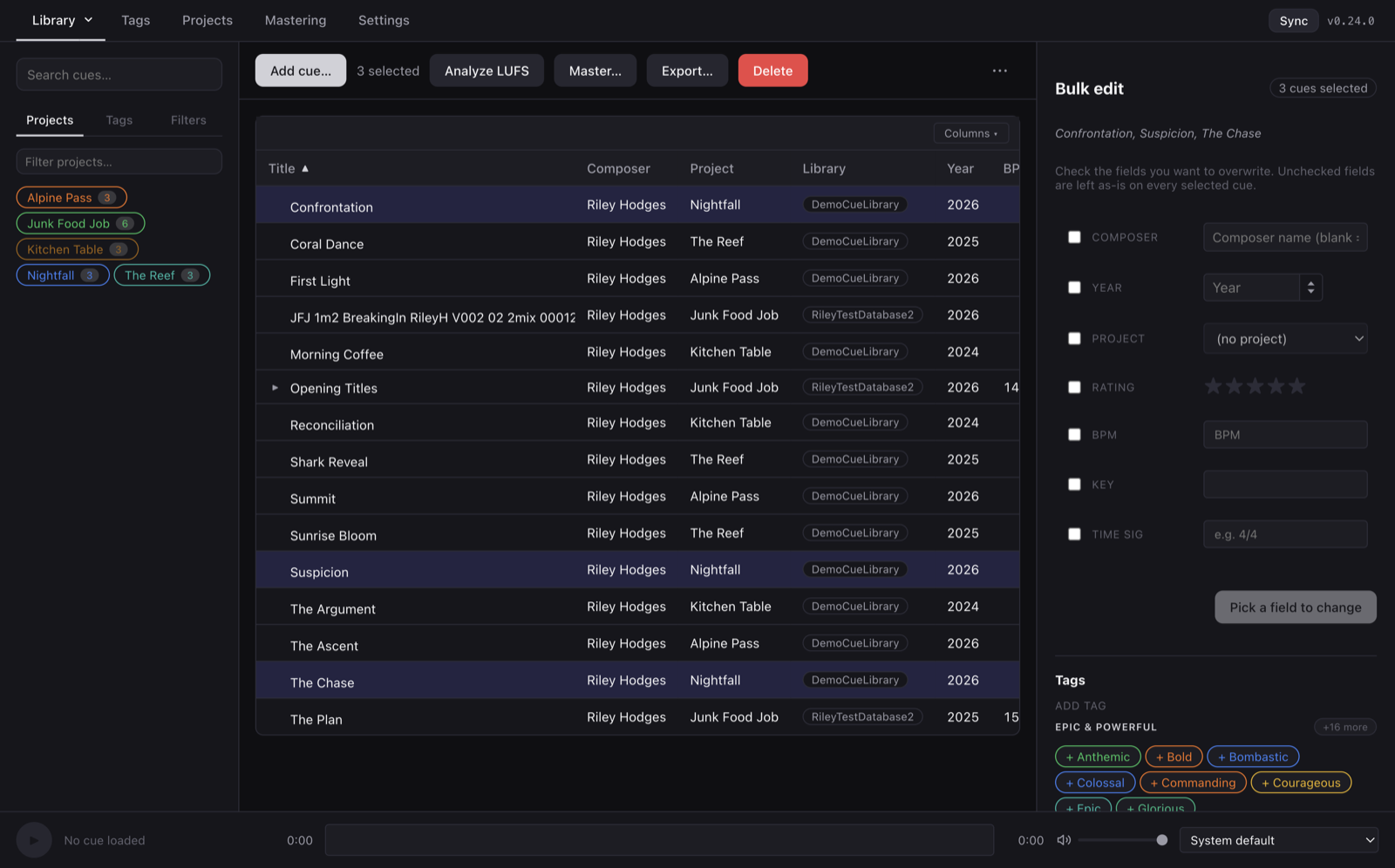
The design is opt-in: every field is a checkbox. Only the fields you check get written to the selected cues; everything else is left as-is. That means a bulk edit is always safe — if you don't check the field, you can't accidentally overwrite it.
Fields available in bulk:
- Composer — text input; empty clears.
- Year — drag-scrub number input.
- Project — dropdown of the current library's projects. (Available only when the selection is within a single library, since project ids are per-library.)
- Rating — star click.
- BPM, Key, Time sig — same pickers as the single-cue detail panel.
Bulk tag operations
Below the field grid, a separate Tags section handles add/remove independently of the opt-in field pattern:
- Add tag — every tag in the library shown as a chip, grouped by category (custom categories included). Click a chip to add that tag to every selected cue in one pass. Cues that already have the tag are unchanged.
- Remove tag — shows only tags currently present on at least one cue in the selection. Click to strip the tag from every selected cue that has it.
These fire immediately — no separate Apply step — because add / remove are idempotent and easier to think about one at a time.
Applying the field changes
Tick the fields you want to change, fill in the values, then hit Apply to N cues. The bar under the button fills as CueOrganizer walks the selection sequentially, with per-cue progress ("Applying… 5 / 12"). When done, the cue list refreshes, the sync engine nudges to push the changes, and the selection stays highlighted so you can immediately do a second pass if you want.
Tip. The bulk edit + free-text search combo is the fastest way to fix a whole category of typos. Search for the misspelled composer name, select all, tick Composer, type the correct name, click Apply. Done in three seconds.
Selecting cues in the table
- Click a row — single selection.
- ⌘-click — toggle a row in/out of the selection.
- ⇧-click — select a contiguous range from the last-clicked row.
- ⌘-A — select every visible row (respects the current filter).
Because the bulk edit panel appears whenever selection count > 1, there's no separate "bulk mode" — it's always one click away.