Cues, Tags & Projects
Everything you see about a cue lives in the detail panel on the right. Click any row in the cue table to open it. Fields commit as you type (with a short debounce on blur), and every commit nudges a background sync so other devices see the change within about half a second.
The cue detail panel
Top to bottom, a selected cue exposes:
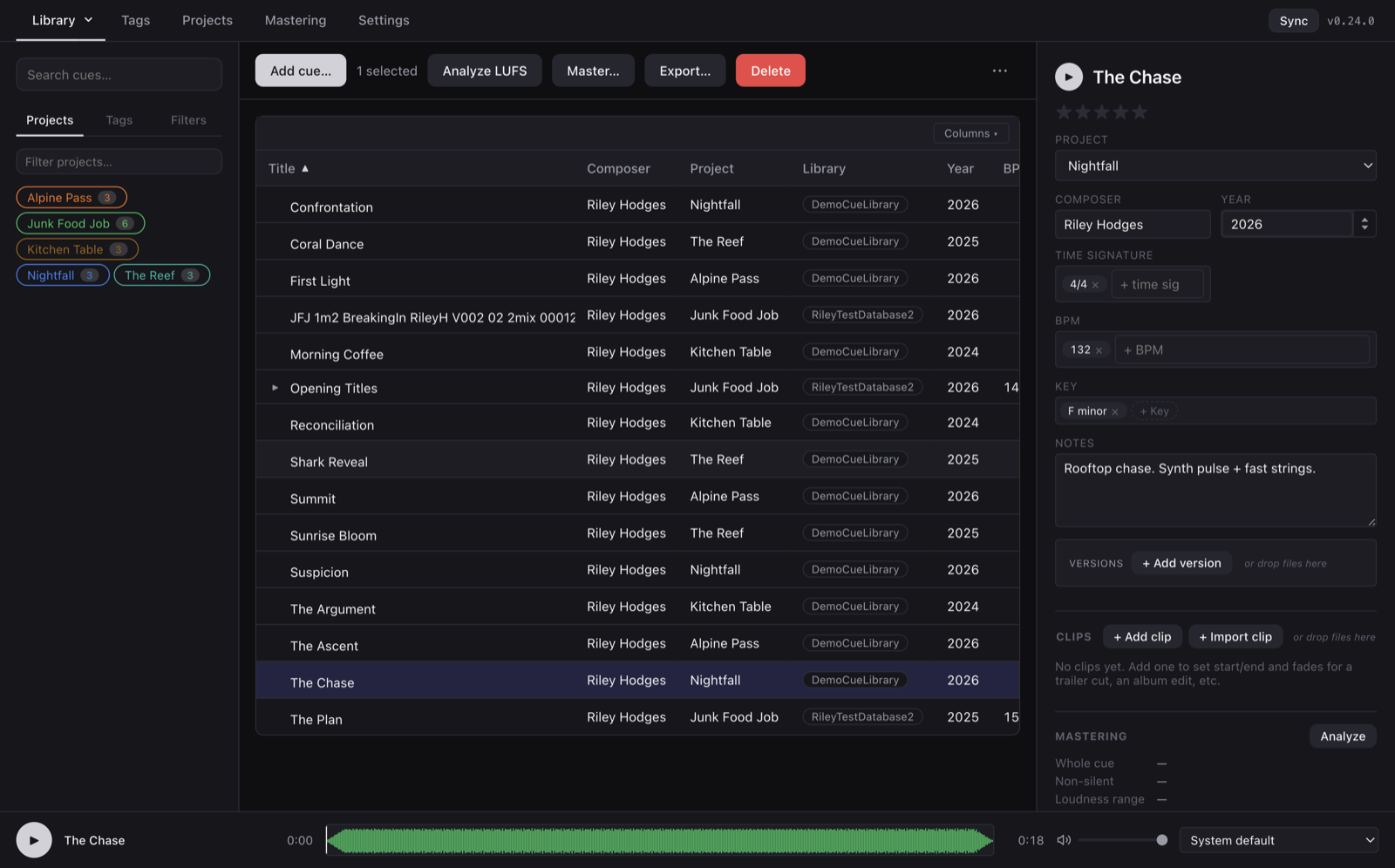
- Play button + title — hit play to hear the cue in the transport at the bottom of the window. Rename inline; press Return or click away to commit.
- Star rating — half-star granularity from 0.5 to 5. Click a star that matches the current rating to clear it.
- Project — assign the cue to a project. Only projects belonging to this cue's own library appear (cross-library project ids don't make sense).
- Composer / Year / Time signature / BPM / Key — the DAW-standard metadata fields. Year and BPM are drag-scrubable number inputs; hold ⇧ for coarse steps, ⌘ for fine. Key, time sig, and BPM support multiple values per cue (a piece that modulates key, or shifts from 4/4 into 5/4).
- Notes — free-text field for whatever context you'd want to remember: the brief this cue answered, the client's feedback, the alternate mix you were considering.
- Versions — when a cue is a primary, its children list here; each row shows the version label (or filename fallback) and clicking opens the version. When a cue is itself a version, the parent's title appears here with buttons to Promote to primary or Unlink from family.
- Clips — add named sub-ranges of the cue (a trailer cut, an album edit, a sting) with their own start/end/fades. Clips can also be imported as pre-baked files.
- Mastering — LUFS / peak analysis and non-destructive gain. Details in Mastering & Export.
- Tags — the tag picker with your library's whole descriptor lexicon available.
- File — filename, duration, sample rate, channels, format, and size. The Replace audio button here swaps the underlying file while keeping every piece of metadata and every clip attached to the same cue.
Every field is inline-editable — no separate edit screen, no save button.
The tag lexicon
Every fresh library ships with 600+ musical descriptors pre-loaded — Epic, Mysterious, Ambient, plus Genres, Instruments, Production Era, Character, Use Case, and more — grouped into 27 categories. A brand-new library is never a blank slate.
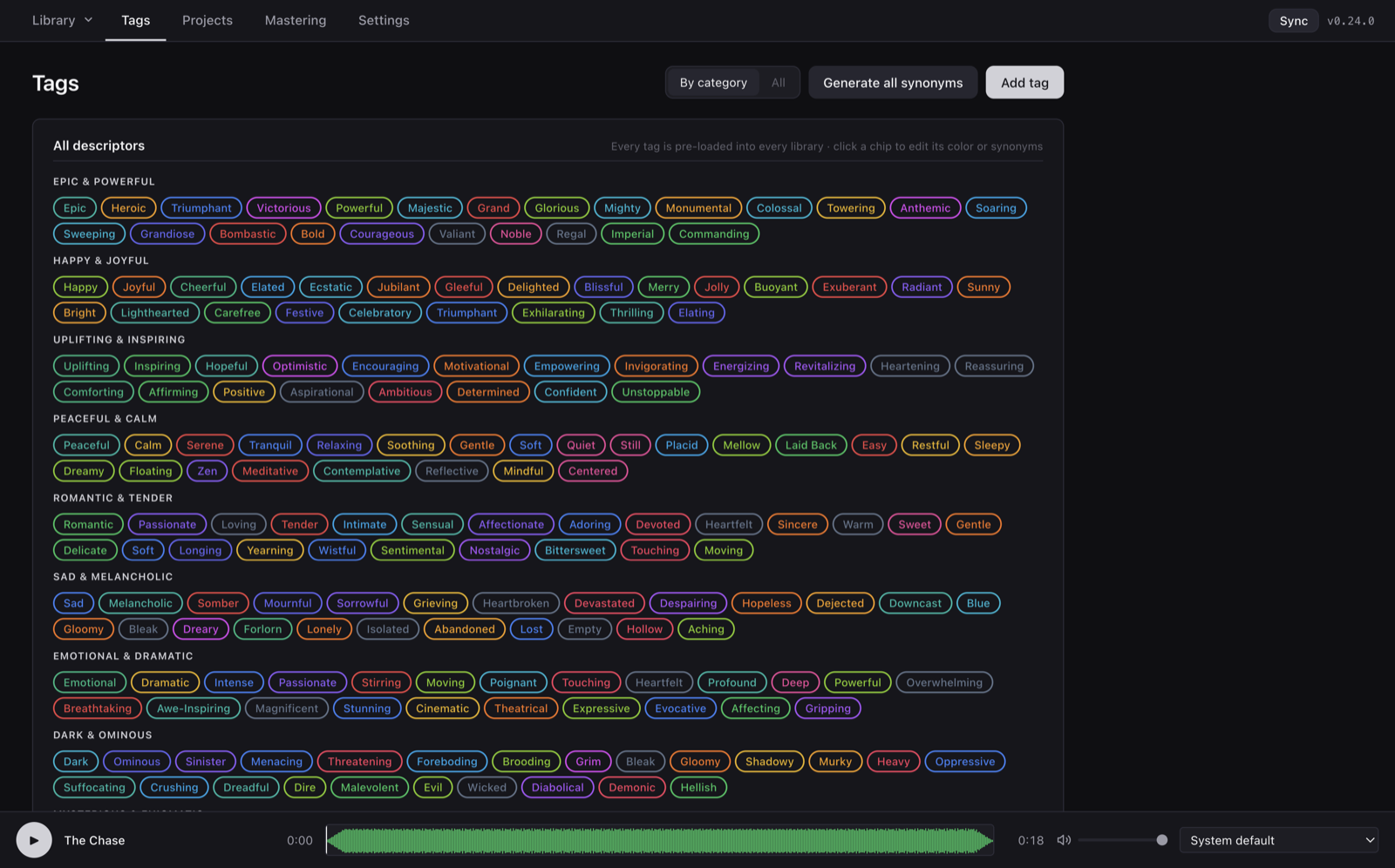
The Tags tab has two views:
- By category (default) — every descriptor rendered as a colored chip, grouped by its category. Clicking a chip opens the edit modal for that tag, where you can rename it, recolor it, edit its synonyms, or move it to a different category.
- All — flat table of every tag with columns for name, synonyms, cue count, and per-row Edit / AI / Delete actions. The AI button fetches synonym suggestions via Datamuse; a delete cascades across every library on this account.
Custom tags & custom categories
The built-in lexicon is only a starting point. Click Add tag in the top-right of the Tags tab to create your own:
- Name — e.g. "Rehearsal takes", "Rejected v001".
- Category — pick from the built-in categories, or click + New category… to type a fresh one like "Post-rock" or "Client feedback pending". Your custom categories render as their own sections alongside the built-in ones in the By-Category view.
- Color — pick from the palette. If you leave it default, tags get a deterministic color based on their name so the same name always gets the same chip color across devices.
- Synonyms — comma-separated list. When someone searches "scary", cues tagged "Eerie" show up too if "eerie" is a synonym of "scary".
Tag operations fan out to every open library so the vocabulary stays consistent — create a tag in one library and it's available in the others.
Attaching tags to a cue
In a cue's detail panel, the Tags section has:
- Currently attached — pills at the top; click the × to remove one.
- Add tag — search-or-create input. Type to filter; hit Enter to attach an existing tag or create-and-attach a new one.
- Quick add — the most-used tags in this library as one-click chips.
- Browse musical descriptors — toggle to expand the whole categorized lexicon inline. Great for tagging a new cue exhaustively.
Tip. The tag picker uses the same category rendering as the Tags tab, so any custom category you've created shows up here too. No need to bounce between tabs to maintain vocabulary and use it.
Projects
Projects sit above cues — one per score, album, EP, or trailer reel. They're a grouping mechanism, a color-coded shortcut in the sidebar, and a source of defaults for cues that inherit them.
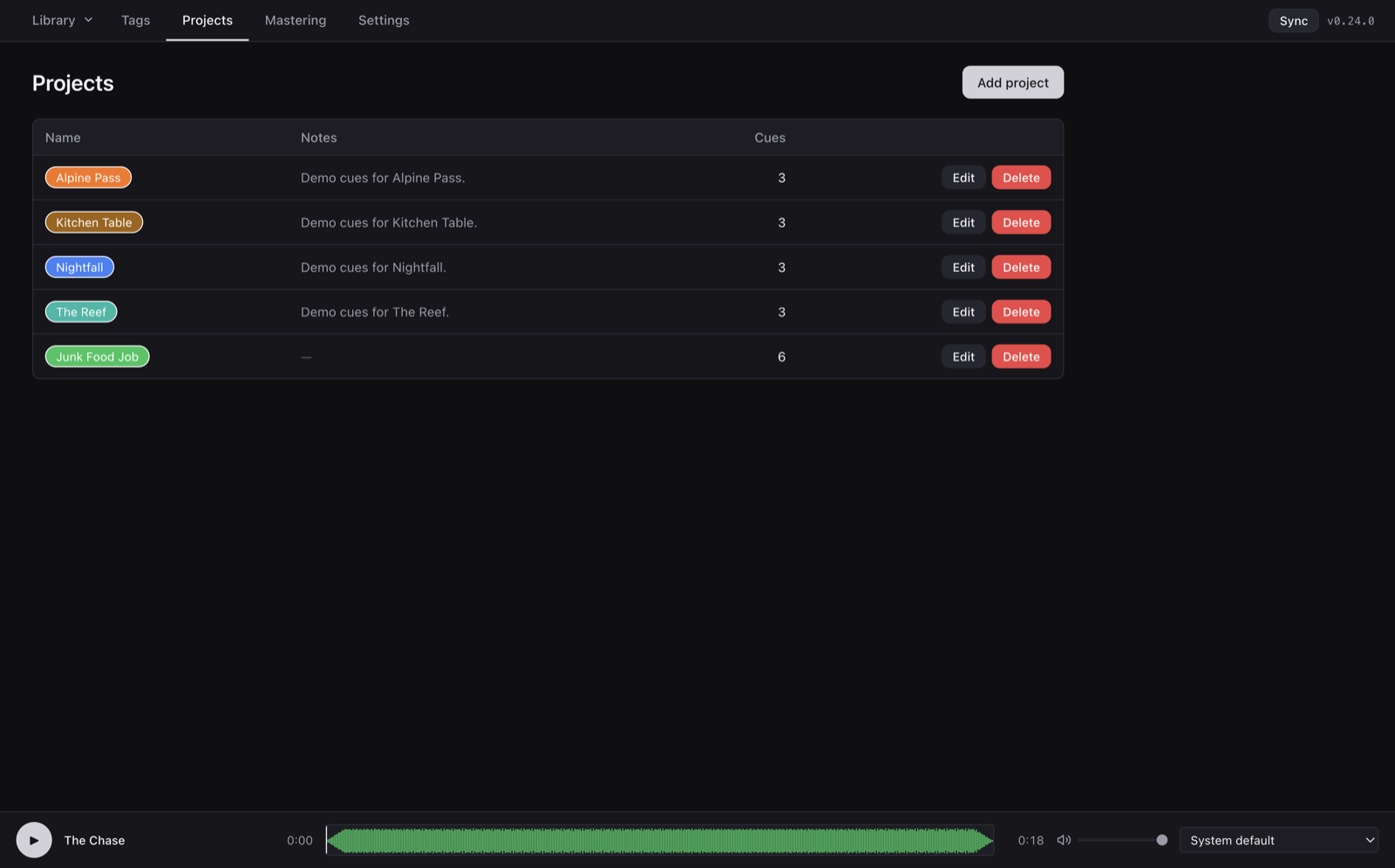
The Projects tab is where you manage them:
- Name + color chip — the chip color flows through the sidebar's project filter chips and into the cue table's Project column, so a glance across the table tells you which cues are in which project.
- Notes — brief-to-brief context. "Trailer 1 pitch, delivered 5 April, awaiting notes."
- Cue count — how many cues currently belong to this project.
Project defaults
Edit any project to set its defaults: composer, year, BPM, key, time sig, mastering target. When you assign a cue to this project (either at import time or later via the detail panel), any field on the cue that's still blank gets pre-filled from the project defaults. Already-set fields are never overwritten.
This makes bulk-assigning a batch to a project also do the bulk-metadata step for free — import 30 cues for a project already configured for −16 LUFS + composer "Alex Cole" + 2026, and every blank field on those cues fills in automatically.