Libraries & Sync
A CueOrganizer library is a folder on disk plus the metadata that describes what's in it. You can have as many libraries open at once as you like — a working library for the current show, an archive of older scores, a shared library for a co-composer collaboration — and switch which one imports land in with a single click.
Adding a library
The + New library and Open existing folder buttons at the bottom of the libraries table cover the two paths:
- + New library — pick or create an empty folder; CueOrganizer initializes
it with a fresh
library.json, emptyaudio/, and a new database. - Open existing folder — pick a folder that already contains
library.json(or a legacylibrary.db, which will be auto-migrated). Useful when opening a library that lives in Dropbox from a second machine, or restoring one from an external drive.
Multi-library setup
Open Settings to see every library CueOrganizer knows about.
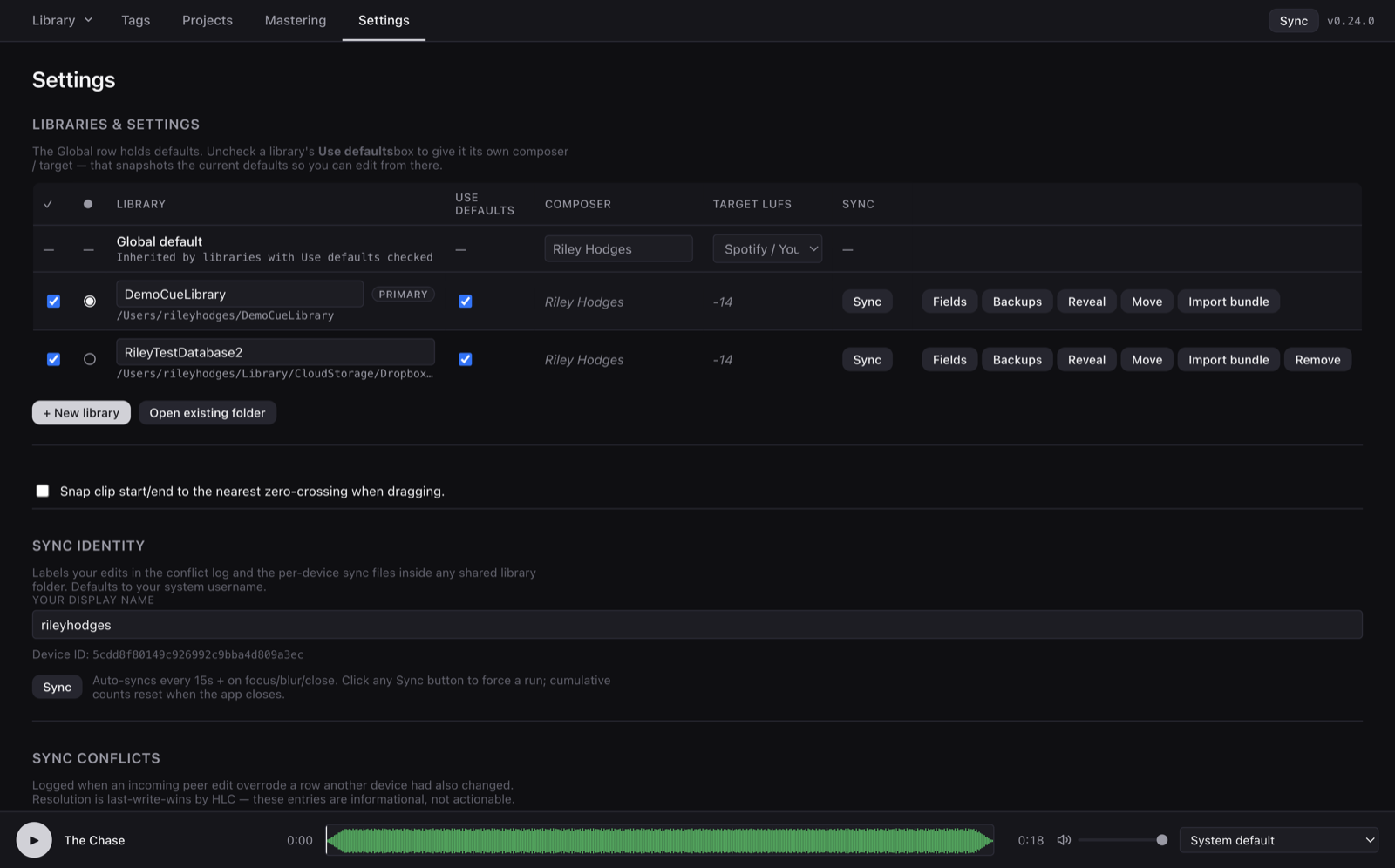
Each row has three toggles that decide how it participates in the app:
- Enabled (the checkbox on the left) — when on, the library's cues show up in the cue table alongside every other enabled library's cues. Turn it off to temporarily hide a library without forgetting about it.
- Primary (the radio button) — the library where new imports land, where new projects default to, and where the "no library specified" IPC path resolves to. Exactly one library is primary at any time.
- Use defaults — when checked, the library inherits composer name and target LUFS from the Global row. Uncheck to give the library its own values (e.g. a client's library uses their composer name; a broadcast library uses −23 LUFS while everything else uses −14).
Per-library controls on the right:
- Sync — push and pull for just this library, without touching the others.
- Fields — define custom metadata fields for this library (e.g. "Client", "Delivery Date", "Cue Sheet Number"). Definitions are per-library so a broadcast-scoring library and a trailer library can have entirely different schemas.
- Backups — browse and restore automatic daily snapshots of the library database.
- Reveal — open the library folder in Finder.
- Move — change the on-disk location of a library (updates the pointer; doesn't move audio files).
- Import bundle — add cues shared as a
.zipfrom another CueOrganizer user (see Bundles). - Remove — forget the library. Nothing on disk is deleted; the library just drops off the sidebar until you re-open it.
Cross-device sync
CueOrganizer syncs any library whose folder is inside a synced location — Dropbox, iCloud Drive, OneDrive, Google Drive, or a NAS. There's no cloud service to sign up for; the app just watches the folder.
How the split works:
- The library folder holds the audio files, artwork, and a per-device append-only
ledger of every edit (in
<library>/sync/). This is what actually gets synced by your cloud provider. - The database lives per-device in the app's data folder, never in the shared library. Each machine reads the ledger and applies incoming ops to its own local database.
This split is deliberate. SQLite databases don't survive cloud-conflict resolution (Dropbox will pick one copy and drop the others; that would silently lose data). By never syncing the DB directly and instead reconstructing it from the shared ops log, CueOrganizer sidesteps that entire class of bug.
The Sync button
The top-toolbar Sync button pushes any local edits into the shared ops log and pulls in ops from other devices. It auto-runs every 15 seconds, when the window gains or loses focus, and when the app closes — you rarely need to click it manually. When you do, you get a confirmation popover:
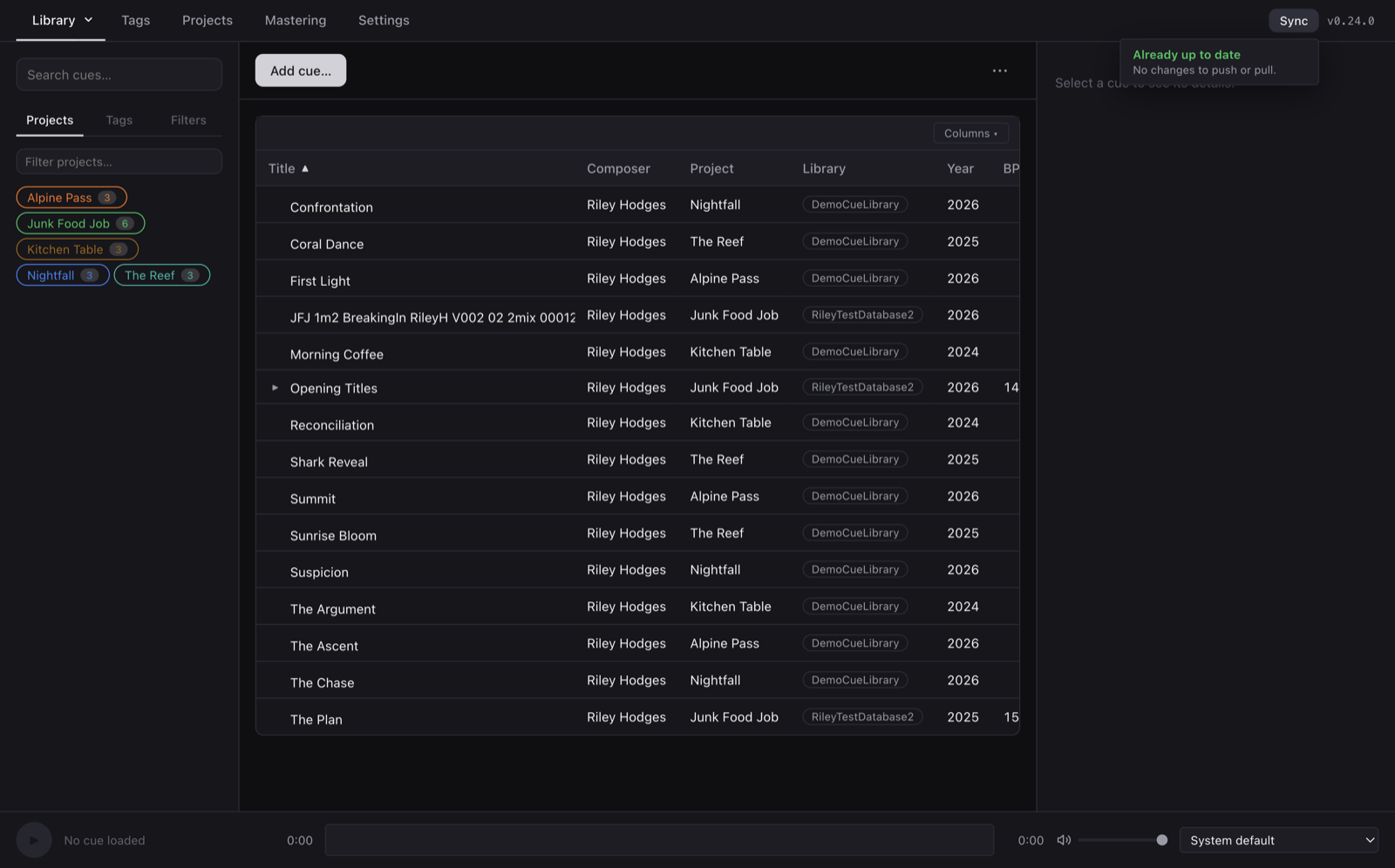
The button label shows cumulative session traffic ("Sync · 3↑ 5↓"). Any local edit — a title change, a tag toggle, a mastering gain — nudges a sync within about 400 ms so the upload arrow lights up before you've moved on.
Conflicts
When two devices edit the same cue at the same time, CueOrganizer detects the overlap at the field level. If Device A changes the year and Device B changes the composer for the same cue, both edits apply cleanly — there's nothing to resolve. If both devices change the year to different values, a red badge appears next to the Sync button and the Review Conflicts modal walks you through them one by one:
- Each conflict shows only the fields that actually disagree — agreeing fields don't clutter the diff.
- Per-field radio buttons let you pick your value or the peer's, one field at a time.
- Take all mine / Take all theirs shortcuts for one-side-wins scenarios.
- Apply commits the merged row and pushes it to peers on the next sync.
Conflicts are only raised for genuinely concurrent edits — if you edit a cue on your laptop, sync, then edit the same cue on your desktop, that's a normal sequential edit and it just applies.
Backups
Every library takes an automatic snapshot of its database into
libraries/<id>/backups/ once per day. Snapshots are just copies of the DB file,
timestamped — browse them from the Backups button on the library's row in
Settings, and click any snapshot to restore it. Restoring replaces the current DB but
leaves the audio files and shared ops log untouched, so anything you undo via a
restore will get re-pulled from other devices on the next sync unless they've all
seen the same restore.