
Importing Cues
Everything you add to the library goes through the batch import dialog — whether you're bringing in 500 tracks from an archive drive or a single new mix from a session you finished five minutes ago. This page covers the three ways to trigger an import and how to use the Apply-to-all pattern to tag a whole batch in seconds.
Three ways to start an import
- Add cue… button — toolbar button above the cue table. Opens the native file picker; multi-select any audio files.
- Drag files onto the window — drop a folder or a selection of files anywhere on the app. The whole window highlights briefly to confirm the drop was seen.
- File → Import… menu — same as the button, via the macOS menu bar.
All three routes end up in the same batch import dialog. Supported formats: WAV, AIFF, FLAC, MP3, M4A, OGG, WMA. Files that aren't recognised as audio are silently ignored; folders are recursively walked so you can drop an entire session archive.
The batch import dialog
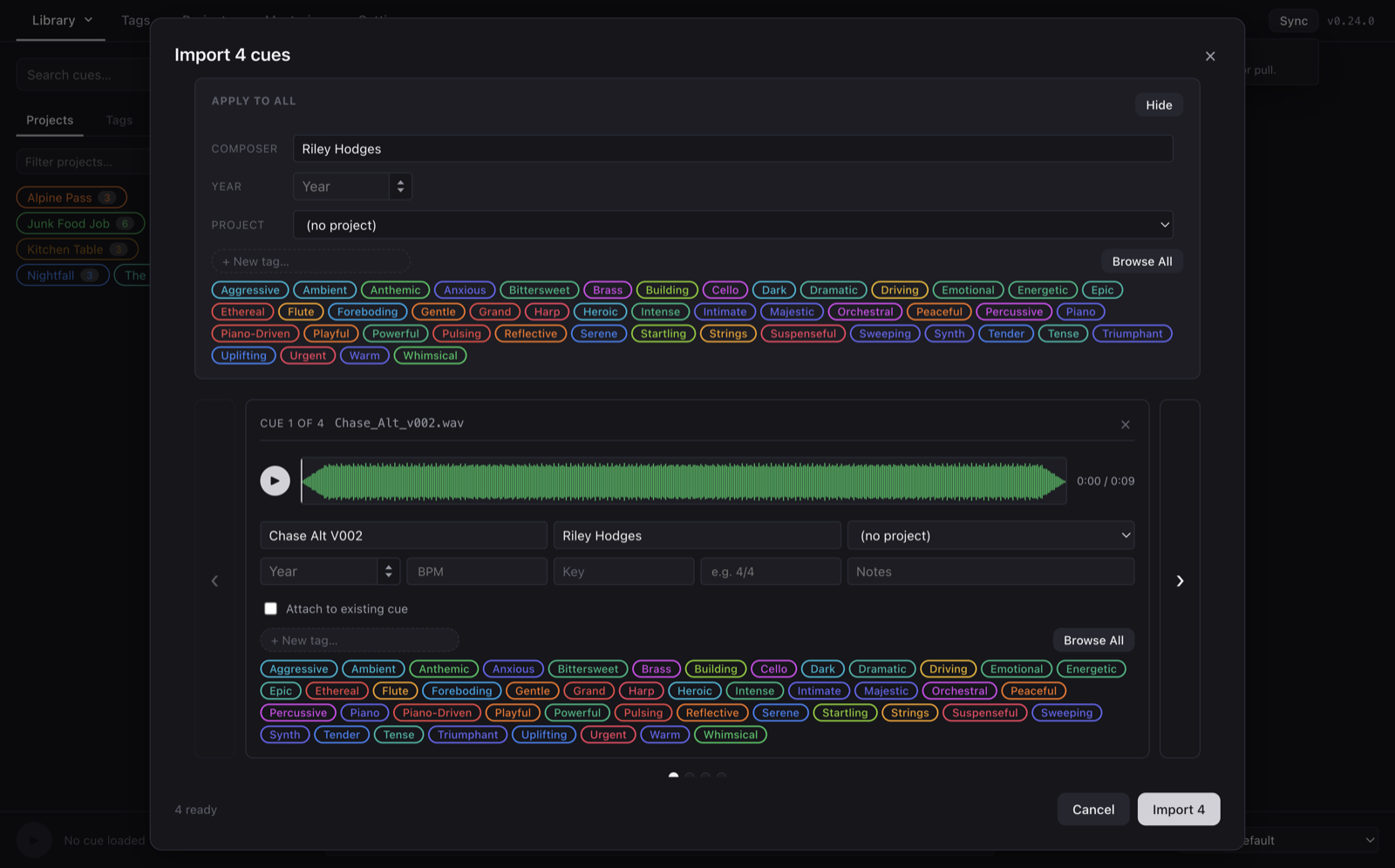
The dialog has two zones: an Apply to all strip at the top, and a per-cue detail pager below.
Apply to all
Anything set here applies to every cue in the batch. The intended workflow is: set the handful of fields that are common across the batch here, then step through the pager to tune only what varies per cue.
- Composer — defaults to your global composer name; edit here if this batch is for a different client.
- Year — drag or type. Applies to every cue in the batch; skip if years vary.
- Project — assign the entire batch to a project in one click. You can also create a new project inline from this dropdown.
- Tags — click any tag chip in the descriptor cloud to add it to every cue. Tags added here appear on every row's tag chip strip too; you can add per-cue tags below that don't apply to the whole batch.
Per-cue pager
Below the Apply-to-all strip, the pager walks through each file in the batch one at a time. Left / right arrows move between cues (or use the keyboard). Each page shows:
- A scrubable waveform of the source file — hit play to hear it. Useful when the filename doesn't tell you enough to name the cue confidently.
- Editable title, composer, project, year, BPM, key, time signature, and notes. Any field you edit here overrides the batch value.
- An Attach to existing cue checkbox that flips this row from "create a new cue" to "import as a version of…" — useful when a folder contains alternate mixes of tracks you already have. See Versions below.
- A tag picker — add per-cue tags. Tags already added via Apply-to-all show as already-selected.
The bottom-left status line shows "N ready" / "N imported" / "N failed" so you can watch progress as the import runs.
The Apply-to-all pattern
Most batch imports come from a coherent group: a folder of cues for a specific film, a delivery of mixes for a specific reel, an archive of a scoring session. The apply- to-all pattern lets you do the shared metadata once:
- Drop the folder.
- In Apply to all: set the composer (if not your default), pick the project, click the 3–4 tags that apply to the whole batch (e.g. "Orchestral", "Trailer", "In-Progress").
- Optionally set the year.
- Click through each cue and adjust title / key / BPM — usually just typing the version marker off the filename.
- Click Import N. Files are copied into the library's
audio/folder, the metadata written to the database, and the whole batch appears in your cue table.
Versions
CueOrganizer's version model handles the reality of scoring: you often have five or six mixes of the same cue — v001, v002, no drums, instrumental, stems — and you want them grouped, not scattered.
Two ways to import a file as a version of an existing cue:
- In the batch dialog — check Attach to existing cue, then pick the parent from the dropdown. You can also attach to another row in the same batch ("row 2 is a version of row 1"), which is useful when a folder holds a cue and its stems all at once.
- From the detail panel — select an existing cue and click + Add version in its Versions row (or drag files onto that row). Each new file becomes a version cue attached to the parent.
Versions inherit the parent's composer, year, key, BPM, time signature, project, tags, and rating at the moment of import — so the version arrives already tagged consistently with its sibling. The version's title stays derived from its own filename so you can still distinguish "The Chase v003 (no drums)" from "The Chase v002 (final)" in the table.
In the cue table, versions collapse under their parent by default with a chevron. Click the chevron (or the parent row) to expand the family. Any cue in a family can be Promoted to primary from its detail panel, which reparents its siblings.
Drop-in-place drag targets
In addition to the window-wide drop for import, two specific spots in the cue detail panel accept file drops for scoped workflows:
- The + Add version row — drop files here to add them as versions of the currently-selected cue. Skips the batch dialog and just imports.
- The Clips row — drop files here to import them as clips of the selected cue (a pre-shortened edit that plays from its own file rather than slicing the parent's audio). Useful when a mix engineer sends you a specific edit for a trailer cut you want to keep attached to the master cue.
Both drop targets glow with an accent border when a drag enters, so you can see the target before releasing.