Getting Started
CueOrganizer is a desktop app for macOS (universal binary — Intel and Apple Silicon). It runs against a library: a folder of audio files plus a small database that stores every cue's metadata, tags, mastering values, and clip ranges. This page takes you from install to a working library in about five minutes.
Installation
CueOrganizer installs through the free Accent Tap Hub:
- Download the Hub from accenttap.com and drag it to Applications.
- Sign in (or create an account). Products you own appear in My Products.
- Click Install on CueOrganizer. The Hub downloads the app, places it in
/Applications, and activates your license on this machine.
Updates work the same way — when the Update badge appears in the Hub, one click installs the latest version.
First launch
The first time you open CueOrganizer on a fresh install, you'll see a first-run prompt asking you to pick or create a library folder. This is just a folder on disk — anywhere you like — that CueOrganizer will use to store your imported audio and its database.
Two paths:
- Create a new library — pick an empty folder (or let CueOrganizer create one).
The app writes a
library.jsonmarker, anaudio/subfolder for imported files, and initializes an empty database. - Open an existing library — pick a folder that already has a
library.json(e.g. one you sync from another machine). CueOrganizer opens it in place; your cues, tags, and projects appear immediately.
Tip. If you plan to use the same library across multiple machines, put the folder somewhere Dropbox or iCloud syncs. Every device gets its own local copy of the database, but the audio files and sync ledger live in the shared folder. Details in Libraries & Sync.
Your first import
Once a library is open, you land on the Library tab. It's empty on a fresh library — a project sidebar on the left, a cue table in the middle, and a detail panel on the right that will show the currently-selected cue.
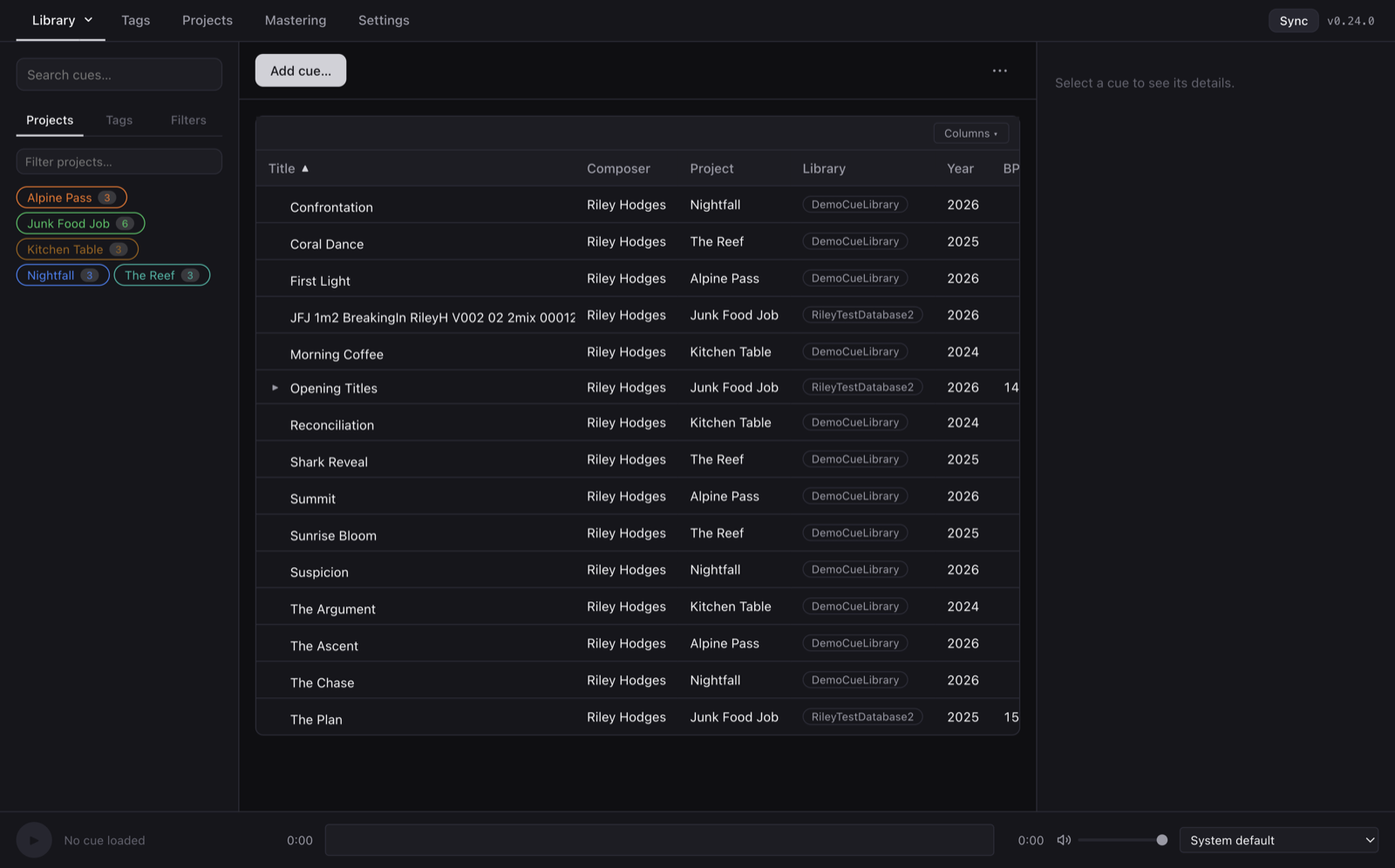
Drag a folder of audio files onto the window, or click Add cue… in the toolbar to pick files. Any drop or multi-select routes through the batch import dialog, where you can set composer, year, project, and tags for the whole batch at once, then step cue-by-cue to fine-tune each one's title, key, BPM, time signature, and notes.
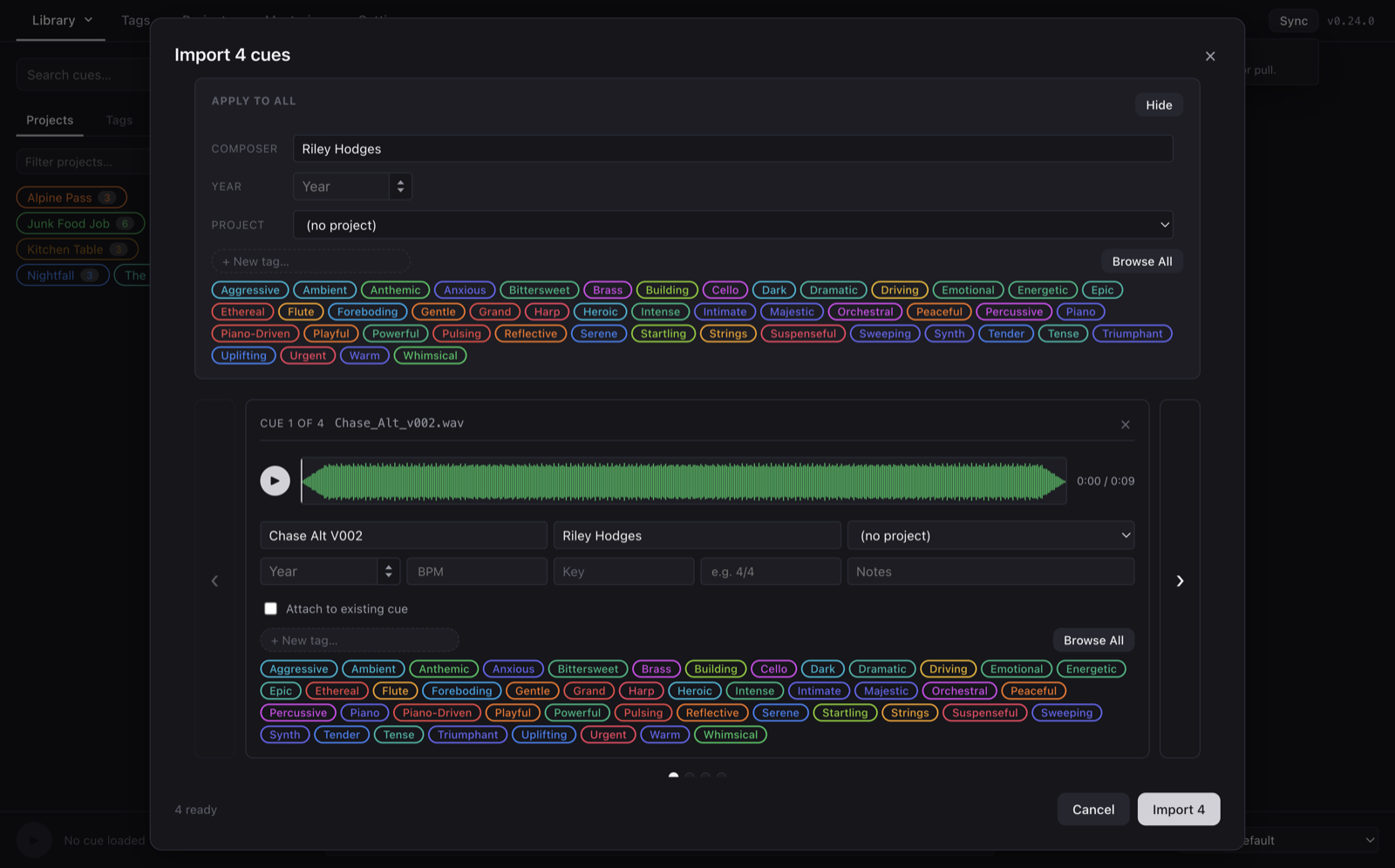
Import walks each file through ffmpeg-quality probing to pull duration, sample rate,
channel count, and format. The audio itself is copied into the library's audio/
folder — nothing is written back to your source files.
The window at a glance
- Top bar — tab switcher (Library, Tags, Projects, Mastering, Settings), the Sync button with its live confirmation popover, and the version tag.
- Left sidebar — free-text search, and tabs for Projects, Tags, and saved Filters. Clicking a project chip or tag chip filters the cue table.
- Cue table — every cue in the library, sortable and filterable. Right-click the header row (or click Columns) to choose which fields to show.
- Right detail panel — playback + waveform + every field on the selected cue, plus versions, clips, mastering, and tag picker. Multi-select and it becomes the Bulk Edit panel.
- Bottom transport — the currently-loaded cue's playhead, scrubbing waveform, volume, and audio output device.
Where your content lives
Understanding the split saves headaches later:
| What | Where it goes |
|---|---|
| The library folder you picked | Wherever you chose — e.g. ~/Dropbox/MyCueLibrary/ |
| Your audio files (copied on import) | <library>/audio/ |
| Library identity + sync ledger | <library>/library.json and <library>/sync/ |
| Per-device database (never synced) | ~/Library/Application Support/cue-organizer/libraries/<id>/ |
| Local settings + recent libraries | ~/Library/Application Support/cue-organizer/settings.json |
| License | ~/Library/Application Support/AccentTap/licenses/<productId>.lic |
The database lives outside the shared library folder on purpose: SQLite databases don't survive cloud-conflict resolution well. The shared audio + sync ledger is what actually propagates between devices; each machine builds and maintains its own DB from the ops log. See Libraries & Sync for the full picture.